


Making your iPhone battery last longer often feels like a constant battle, but it really boils down to a few smart adjustments to your settings and daily routine. The easiest things you can do right now are dimming your screen, switching on Low Power Mode when the charge gets low, and managing which apps are running in the background. Adopting these simple habits can make a noticeable difference, often straight away.
Your Guide to a Longer-Lasting iPhone Battery
It is a familiar frustration for iPhone users across the UK: you leave the house with a full battery, but by mid-afternoon, you are already searching for a charger. From checking emails on the morning commute to using maps on the way home, our phones are always working hard. Over time, all batteries naturally degrade, but how we use and charge our iPhones has a significant impact on how long they stay healthy.
This guide will walk you through practical tips to get more life out of your battery each day and protect its long-term health. We will skip the complicated technical jargon and focus on simple steps you can take right now. Once you understand what is draining your battery, you can take back control and get more from every charge.
Understanding the Basics of Battery Drain
At its core, your iPhone's battery is a lithium-ion power source. Everything your phone does—from lighting up the screen to buzzing with a new notification or searching for a 5G signal—draws a small amount of energy. It is the combined effect of all these actions that determines how quickly your battery percentage drops.
The main culprits behind a fast-draining battery usually fall into a few categories:
- Display Brightness: Your screen is almost always the biggest power consumer. The brighter it is, the more energy it needs.
- Background Activity: Apps are often still working even when you are not looking at them. They are busy refreshing content, checking your location, and pushing notifications, all of which drains power.
- Poor Signal: When your iPhone is searching for a stable mobile or Wi-Fi signal, it increases its radio power, which drains your battery.
- Charging Habits: The way you charge your device can affect its long-term health. Using certified chargers and understanding features like MagSafe is key. To get a better understanding of this, you can learn more about what MagSafe charging is and why it is so efficient.
Making small adjustments in these areas stops unnecessary power drain and keeps your iPhone going for longer. It is about working smarter with the technology you already own.
Squeeze More Life Out of Your iPhone by Tweaking Your Settings

Often, the quickest wins for better battery life are found within your iPhone's settings. You do not need to change how you use your phone; a few small tweaks can make a surprisingly large difference to how long you go between charges.
The first port of call should always be Low Power Mode. Think of it as an emergency power reserve. Switching it on when your battery gets low is the single most effective thing you can do to keep your phone running.
When you enable it, Low Power Mode can give you several extra hours of use, which is invaluable when you are out and about. It works by temporarily reducing background app activity, some visual effects, and automatic downloads. Your phone still works perfectly for calls, texts, and browsing, but it stops wasting energy on non-essential tasks. To get a deeper insight into how these power-saving features work, it is worth understanding the technology behind them.
Tame Your Display Settings
The screen on your iPhone is one of its biggest energy consumers. The brighter it is, the faster your battery drains, so managing your display settings is essential.
First, pull down your Control Centre and slide the brightness down a notch or two. You will barely notice the difference, but your battery will. For an even easier solution, turn on Auto-Brightness. Your iPhone will then use its ambient light sensor to adjust the screen for you, so it is never brighter than it needs to be.
Another simple but powerful setting is Auto-Lock. This controls how quickly your screen turns off when you are not using it.
-
Find it here: Go to
Settings > Display & Brightness > Auto-Lock. - Our recommendation: Set this to 30 seconds or 1 minute.
Think about how many times a day you put your phone down. A shorter lock time means the screen switches off faster every time, saving a little bit of power that adds up.
Setting a quick Auto-Lock time and keeping your screen brightness in check are two of the easiest, set-it-and-forget-it ways to reduce constant battery drain.
Cut Down on Notification Clutter
Every time your screen lights up with a notification, it uses a tiny amount of battery. One notification is nothing, but when you get hundreds a day, the cumulative effect starts to take a toll.
It is time for a notification audit. Be honest with yourself—which apps really need to interrupt you with an instant alert?
A news app, your bank, and your messaging apps? Probably. But that game you play occasionally or a shopping app sending you a sales alert? Not so much. Turning off their notifications means your screen wakes up far less often throughout the day. Head to Settings > Notifications and you can customise the permissions for every app. It is a quick clear-out that helps you stay focused and saves a surprising amount of power.
Manage Your Apps and Background Activity
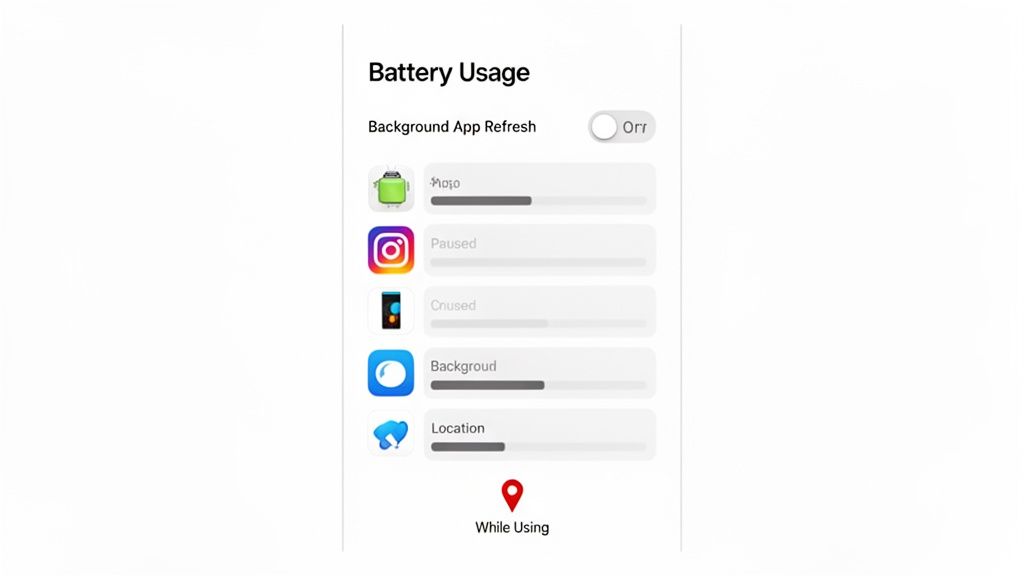
It is easy to forget that many of your apps are busy working away even when you are not using them. They are often fetching new emails, updating your social feeds, or checking your location in the background. While this is useful for convenience, this constant activity can be a significant, silent drain on your battery.
The best way to start is by finding out which apps are the biggest culprits. Your iPhone makes this easy. Go to Settings > Battery. Here, you will get a clear picture of what has been using up your power over the last 24 hours or even the last 10 days. Look for apps with high background activity that you barely open – those are the ones you will want to tackle first.
Taming Background App Refresh
One of the most subtle battery drains is a feature called Background App Refresh. It is what lets your apps update themselves with fresh content before you even open them. This is useful for your messaging apps, but do you really need that game you play once a week constantly updating in the background? Probably not.
You have a couple of ways to manage this:
- The All-or-Nothing Approach: Head to Settings > General > Background App Refresh and switch it to Off. This is the ultimate power-saving move, but it might be too aggressive for some.
- The Selective Approach: A better option is to leave the main setting on but go through the list of apps one by one. Be ruthless. If an app does not need to be live the second you open it, switch it off.
A quick audit of your Background App Refresh settings is one of the most effective things you can do for your battery. It stops pointless background checks and puts you back in charge of where your power is going.
Restricting Location Services
Location Services are brilliant for maps and ordering a taxi, but they are also one of the biggest power consumers on your phone. In the UK, this is especially true when you are in an area with a poor signal, as your iPhone has to work overtime just to determine where you are.
Continuous GPS tracking is a well-known battery drain, often needing constant satellite pings and data connections. Thankfully, you can find out more about the impact of GPS on iPhone battery performance and get it under control.
Go to Settings > Privacy & Security > Location Services. Take a look at the list. For any app that does not need to know your location 24/7, change its permission from Always to While Using the App. Better yet, if it does not need your location at all, set it to Never. Every small change adds up.
Develop Healthy Charging Habits for Long-Term Battery Health
It is not just about what you do with your iPhone—how you charge it matters just as much. Many people wear out their batteries prematurely simply due to poor charging routines. A few small adjustments can make a considerable difference to its lifespan.
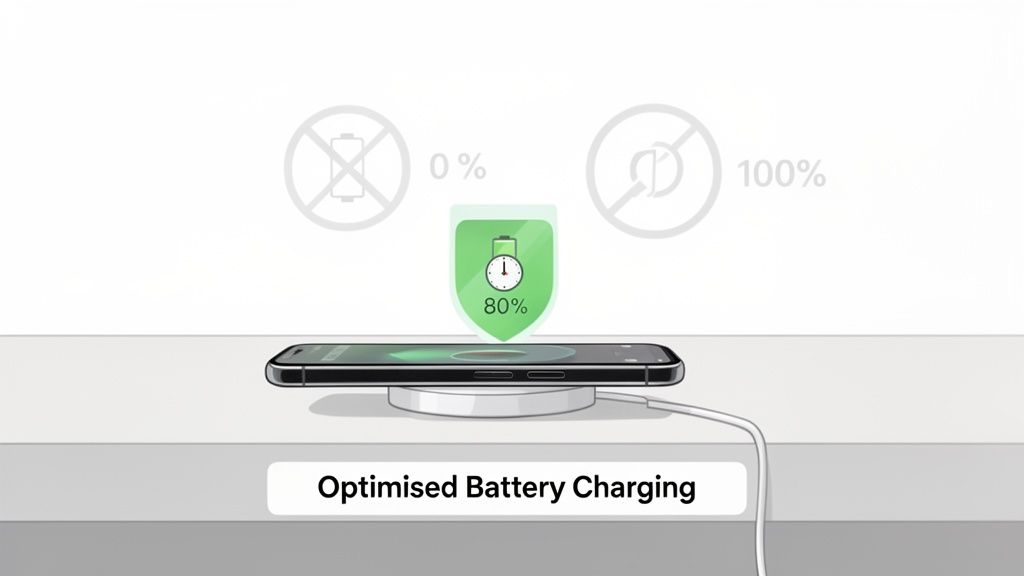
Let us start by addressing a common myth: you do not need to let your battery die completely before plugging it in. In fact, with modern lithium-ion batteries, that is one of the worst things you can do. The ideal range is keeping the charge between 20% and 80%. This simple habit reduces the stress on the battery's internal chemistry, preventing it from degrading as quickly.
Use Optimised Battery Charging
Thankfully, Apple has built a clever feature right into iOS to help with this. It is called Optimised Battery Charging, and you can find it under Settings > Battery > Battery Health & Charging.
This feature is excellent because it learns your daily habits. For example, if you plug your phone in overnight, it will charge up to 80% and then pause. Just before your usual wake-up time, it will resume charging to get you to 100%. This drastically cuts down the time the battery spends sitting at a full, high-stress charge. It is a genuine set-and-forget tool.
By enabling Optimised Battery Charging, you are actively preserving your battery's long-term health without having to think about it. It is one of the most effective set-and-forget features for battery longevity.
Understanding Your Battery Health
That same 'Battery Health' screen has another crucial piece of information: Maximum Capacity. This percentage shows how much charge your battery can hold compared to when it was brand new. Do not worry as it drops from 100%; that is completely normal. However, once it dips below 80%, Apple considers the battery worn, and you will likely notice it does not last as long.
Newer iPhones have improved significantly in this department. To give you an idea, the iPhone 17 Pro Max clocked an impressive 17 hours and 50 minutes in recent battery tests, showing just how much modern chips and battery technology have improved things for UK users. When you combine that with efficient charging methods like MagSafe, these devices hold their health for much longer. If you are curious, you can learn more about MagSafe charging speeds and how they help.
Of course, none of this matters if your hardware is not in good condition. Fluff in your charging port can cause all sorts of issues. If you suspect a physical problem, this guide on fixing your iPhone charging port is a useful resource. Keeping both your software settings and hardware in good shape is the key to a healthy battery.
Pick the Right Gear for Safe, Speedy Charging
What you plug your iPhone into matters. It is easy to grab any old cable or charging pad, but the quality of your accessories directly impacts your battery's long-term health and how fast you can power up. Choosing certified, well-made gear is not just a recommendation; it is one of the simplest ways to protect your phone.
Using cheap, uncertified chargers can cause problems. They often deliver power erratically, which creates excess heat and puts a strain on your battery’s delicate internals. This is why you should always look for Qi-certified wireless chargers and MagSafe-compatible accessories. These are not just labels—they are a guarantee that the product has met rigorous safety and performance standards, ensuring it communicates with your iPhone correctly for a safe and efficient charge.
Why MagSafe and Qi Certification Are Important
MagSafe is a brilliant piece of technology. The magnets ensure your iPhone snaps into the perfect spot on the charger every time. This perfect alignment reduces energy waste and keeps heat build-up to a minimum, allowing for a steady and fast charge of up to 15W.
Qi certification is the universal standard for wireless charging, giving you peace of mind. When a charger is Qi-certified, it means it has passed tests for safety, compatibility, and efficiency. You can be confident it will not slowly damage your battery over months of use. We explore this further in our guide to the best wireless chargers for iPhone.
Remember, a certified charger is not just about raw speed. It is about smart power delivery that protects your investment and keeps your battery healthy for longer.
Smart Chargers That Fit Your Life
Your charging setup should work for you. Whether you are at your desk all day, constantly on the go, or commuting in the car, having the right tool for the job makes keeping your battery topped up effortless.
At Cablenova, we create charging solutions designed with UK iPhone users in mind. Everything is backed by a solid 12-month guarantee and comes with free UK delivery, so you know you are getting quality equipment.
To help you find the perfect match, here is a quick look at some of our most popular solutions.
Cablenova Charging Solutions for Every Need
| Product | Best For | Key Features |
|---|---|---|
| ArcStation™ 3-in-1 MagSafe Stand | Your home or office desk | Charges iPhone, Apple Watch, and AirPods all at once. Fast 15W MagSafe. |
| GlowStation™ & HexHub™ | A stylish, modern workspace | Combines multi-device charging with ambient desk lighting. |
| Triad™ Foldable Charger | Travelling light or minimalist setups | Folds into a small, packable square. Charges three Apple devices. |
| DashSnap™ MagSafe Car Charger | Commuting and road trips | Clips to your air vent for a secure hold and steady charge on the move. |
Each of these is built to support your iPhone's battery with intelligent power management, giving you the charge you need without compromising on safety or efficiency. It is all about making your life a little bit easier.
Frequently Asked Questions About iPhone Battery Life
Even after trying all the tips, you might still have a few lingering questions about your iPhone's battery. Let us tackle some of the most common ones from UK users to help you get a better understanding of your device's behaviour.
Does Fast Charging Damage My iPhone Battery?
The short answer is no—as long as you are using certified chargers and cables. Your iPhone is smart about how it takes in power. It will charge at full speed until it hits 80%, then it switches to a slower "trickle" charge for the final 20%. This process prevents the battery from getting too hot and reduces wear.
The real danger comes from cheap, uncertified chargers. These often do not meet strict safety standards, which can cause overheating and damage your battery over time. Stick with official MagSafe or Qi-certified chargers, and you will be fine.
Is It Better to Turn My iPhone Off at Night?
While it might seem logical to switch it off to save a tiny bit of power, it is generally not necessary. Modern iPhones are incredibly efficient in standby mode and use very little power overnight.
Furthermore, features like Optimised Battery Charging need your phone to be on and plugged in to work properly. This is how your iPhone learns your routine and finishes charging just before you wake up, which is much healthier for the battery long-term. If you are concerned about overnight drain, simply switch it to Aeroplane Mode.
Turning your iPhone off can interfere with important background updates and smart charging features. Leaving it on and plugged in overnight is usually the best approach for your battery's health.
Why Does My Battery Drain So Quickly in Cold Weather?
If you have noticed your battery percentage drop on a cold winter's day, you are not imagining it. Lithium-ion batteries do not perform well in the cold. When the temperature drops below 0°C, their internal chemistry slows down. This makes it harder for them to deliver power, causing the battery to drain much faster or even shut down completely.
This is a temporary effect. As soon as your iPhone warms back up to a normal temperature, its battery performance will return to normal. A simple tip for cold days is to keep your phone in an inside pocket, close to your body heat.
Should I Replace My Battery Below 80% Health?
Apple's rule of thumb is that once your battery's maximum capacity drops below 80%, it is considered worn out. At this stage, you will probably notice a real-world difference—you will be reaching for the charger more often, and your phone might feel a bit sluggish or even shut down unexpectedly.
You can check your battery's health in Settings > Battery > Battery Health & Charging. While you can keep using it past this point, getting the battery replaced is the best way to restore your iPhone's original performance.
When the time eventually comes to move on from your device, it is worth looking into proper disposal. You can learn more about available Apple product recycling programs to ensure it is handled in an eco-friendly way.
Ready to upgrade your charging setup? Explore the full range of safe, fast, and reliable MagSafe and Qi-certified accessories at Cablenova and find the perfect match for your lifestyle. Shop now at Cablenova.